You add new users in HubSpot under the gear icon, Users & Teams, Add users. For each person you need a free seat, the right permissions and about two minutes. The fastest way is to copy the settings of a colleague in the same role.
Who can add users?
Super Admins and users with the permission “Add and edit users”. You can only give others the permissions you have yourself. If you don’t see the button “Add users”, ask your HubSpot admin for this permission.
Is there a free seat?
Every user needs a seat. You can check under the gear icon, Users & Teams, tab Seats.

A Core Seat covers most team members. Sales and Service Seats are paid per person and add features such as sequences. View-Only Seats are free, but the person can’t create or edit anything.
At one of our clients, all Core Seats were in use just as the team wanted to invite new sales reps. You then have two options: a Super Admin deactivates someone who no longer works in HubSpot, or you buy an extra seat.
How do I add a user?
In Users & Teams, click “Add users” at the top right and then “Create new”. A panel opens on the right. Fill it in from top to bottom.
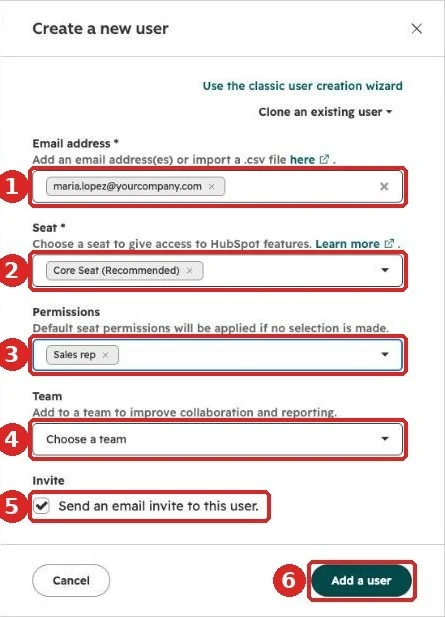
- Email address: type the work email and press Enter. You can add several people at once.
- Seat: usually Core Seat.
- Permissions: the template that fits the role, for example “Sales rep”. Without a choice, the default permissions of the seat apply.
- Team: optional, if you use teams for reporting or lead distribution.
- Invite: leave the box checked so the person gets an email.
- Click “Add a user”.
How do I copy a colleague’s access?
Click “Clone an existing user” at the top of the panel and pick a colleague in the same role. HubSpot takes over seat, permissions and team, and you only enter the email address.
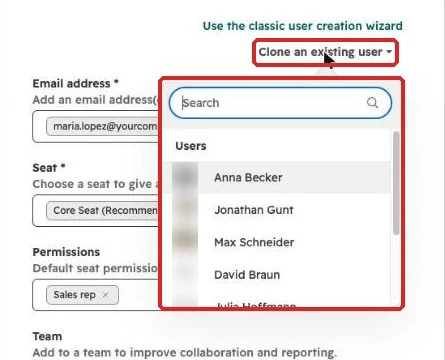
We recommend this to our clients as soon as a team grows. If you set permissions by hand every time, sooner or later someone gets too much access or misses one. Then a new sales rep suddenly sees every colleague’s deals, or none at all.
What happens after the invite?
The new user gets an email from HubSpot and sets a password or signs in with Google or Microsoft. Until then they show up under “Pending invites”. Next they set up their account: profile, inbox and calendar. Our guide on how to use HubSpot walks through it.
How do I remove someone who leaves?
Deactivate instead of delete. Their history stays, and their seat no longer counts toward your seat total. Only Super Admins can deactivate users.
Before that, give their open contacts and deals to a colleague: filter by the old owner, select all, change the owner in one step. Otherwise these records stay with someone who no longer works on them. Then go to Users & Teams, click “Actions” and “Deactivate user”.
Frequently asked questions
Can I add many users at once? Yes. Type several email addresses into the panel, or use “Add users” and “Import” to upload a CSV file with up to 100 users.
The invite doesn’t arrive. What now? Ask the person to check their spam folder first. In Users & Teams you can send the invite again through “Actions”.
How many Core Seats do I have? That depends on your subscription. The exact number is in the Seats tab.
Get the guide as a PDF
All steps with screenshots on four pages, to pass on to whoever adds users at your company. Enter your name and email address and the guide opens right away.
Your team is growing and you want new colleagues to use HubSpot properly from day one? Book a call with us.