You got a HubSpot login, the portal is set up, and the first screen shows menus, lists and settings, half of which you will never need. This is the point where many teams quietly go back to Excel.
The way through is shorter than the menu suggests. You set up your inbox, your calendar and the Outlook add-in once, so your work lands in the CRM on its own. Then you learn views and filters. Only with those does HubSpot show you just what you need to work on today, and that is the real difference to a spreadsheet.
The short version
- Connect your inbox and your calendar first. Without them, half of your customer communication never reaches the CRM.
- Install the HubSpot add-in for Outlook (or the Gmail extension) and pin the sidebar.
- Set up your signature and your meeting link.
- Learn the three columns of a record: key details on the left, history in the middle, associations on the right.
- Build at least one view yourself: set filters, pick columns, save it as a new view.
- Use views for states and tasks for commitments with a fixed date.
- The complete guide with every step is available as a PDF.
Why does HubSpot feel so overwhelming at first?
Because you see everything at once and nothing is filtered. As long as you don’t understand navigation, views and filters, HubSpot is basically an expensive Excel list, and Excel is better at being a list.
The value shows up once the system shows you only what matters for your next hour: the five contacts you call today, or the three deals where nothing has happened for two weeks. That is what views are for. They take the volume out of the system and turn it into a tool you work faster with than with a spreadsheet.
We see this in every rollout. Teams that only know the default lists scroll through hundreds of records and keep a private list on the side. Teams that built their own views open one tab in the morning and work through it.
What should I set up first in HubSpot?
Your inbox, your calendar and the add-in for Outlook or Gmail. These three steps make sure emails and meetings with customers land on the right contact automatically, without you typing anything.
All personal settings live behind the gear icon at the top right, in the “Your Preferences” section. They only apply to you, your colleagues don’t see any of it.
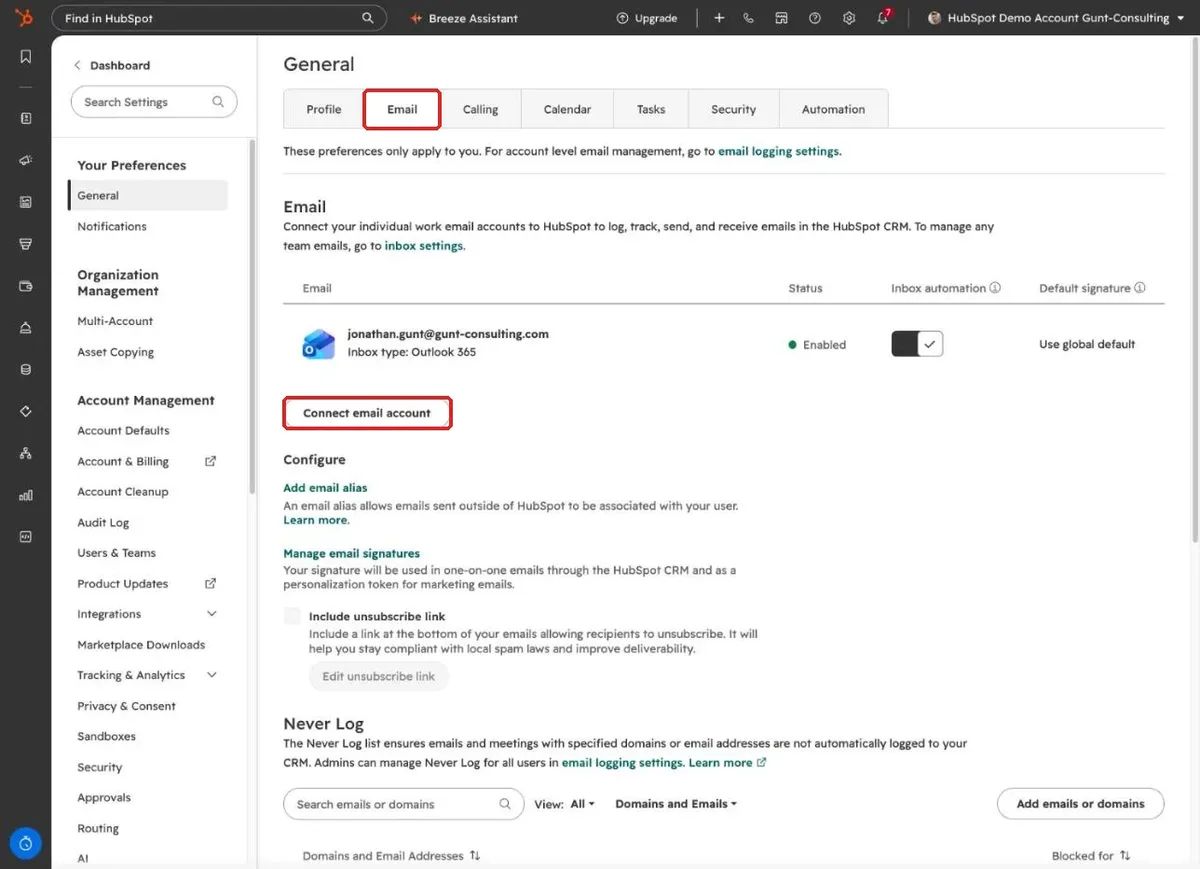
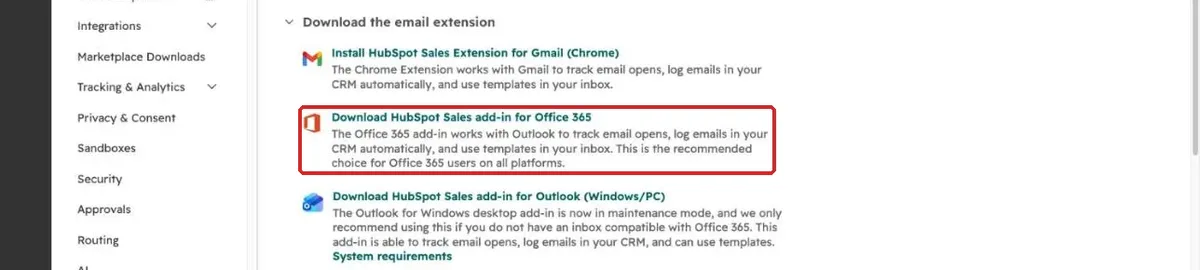
Whether emails land in the CRM automatically depends on the logging rule your admin sets for the account and on whether the contact already exists in HubSpot. The details are in our article on the HubSpot Outlook integration. For tracking opens and for logging an email by hand, the HubSpot sidebar has to be open while you write. Pin it, then it stays open for every new email.
Also maintain the “Never Log” list in the same tab. Private addresses, your tax advisor or suppliers without a customer relationship then stay out of the CRM.
How do I find my way around HubSpot?
Through the menu on the left, the search bar at the top and the layout of every record. Once you know these three, you find any contact or deal in seconds.
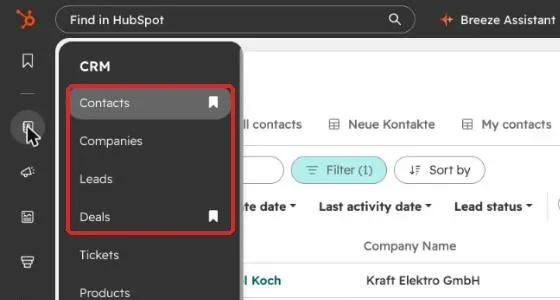
In the left menu, CRM holds your records: contacts, companies, deals, tasks. The bookmark icon next to a menu item pins your most important lists to the top. The search bar finds records by name, email address, company or phone number.
Every contact, company and deal has three columns. On the left you see the name and key details, and clicking into a field lets you edit it. In the middle, the Activities tab shows the full history with notes, emails, calls and meetings. On the right you see the associations, meaning which contacts, companies and deals belong together.
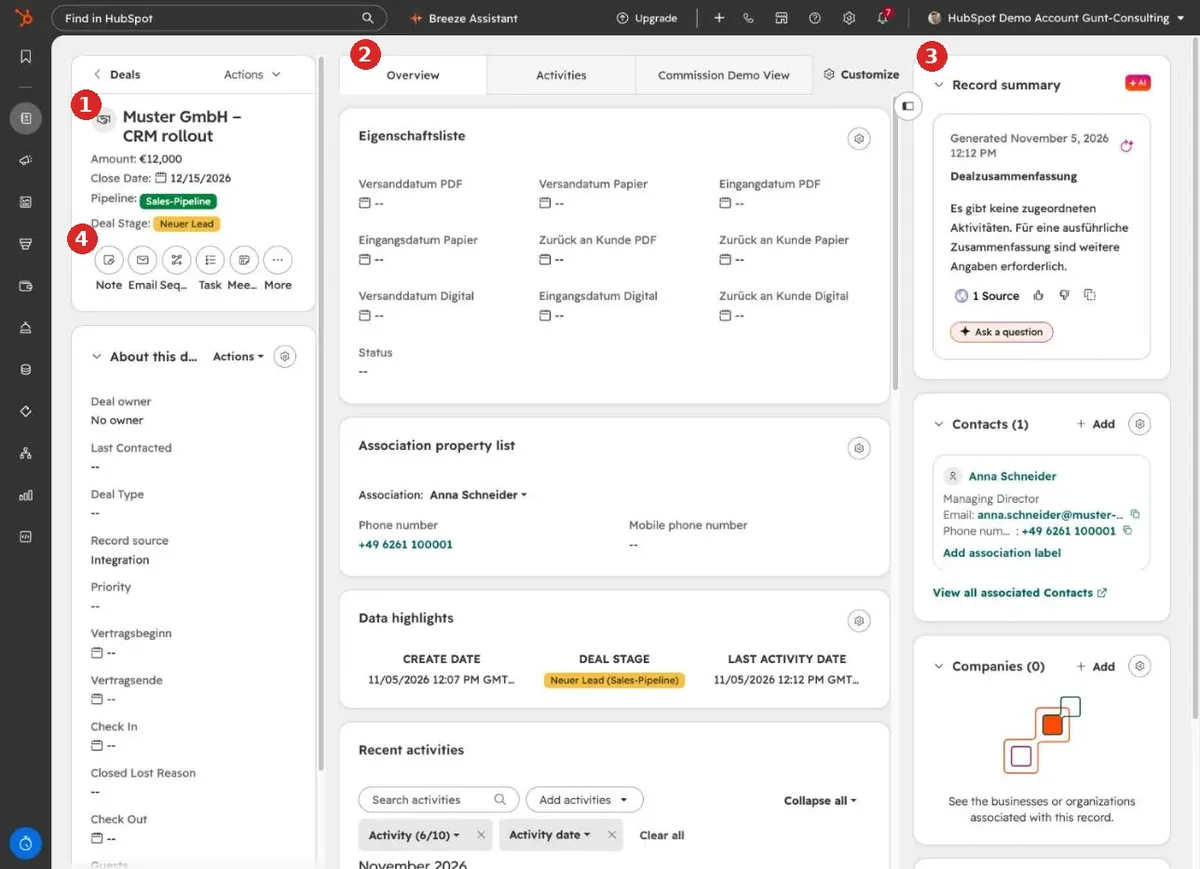
Those associations are why a CRM can do more than a spreadsheet. A note on the deal also shows up on the contact and the company. Whoever calls the customer tomorrow sees right away what you discussed today.
How do I work with views and filters?
A view is a saved filter with its own columns that sits as a tab above the list. You build it once and open it every day with one click.
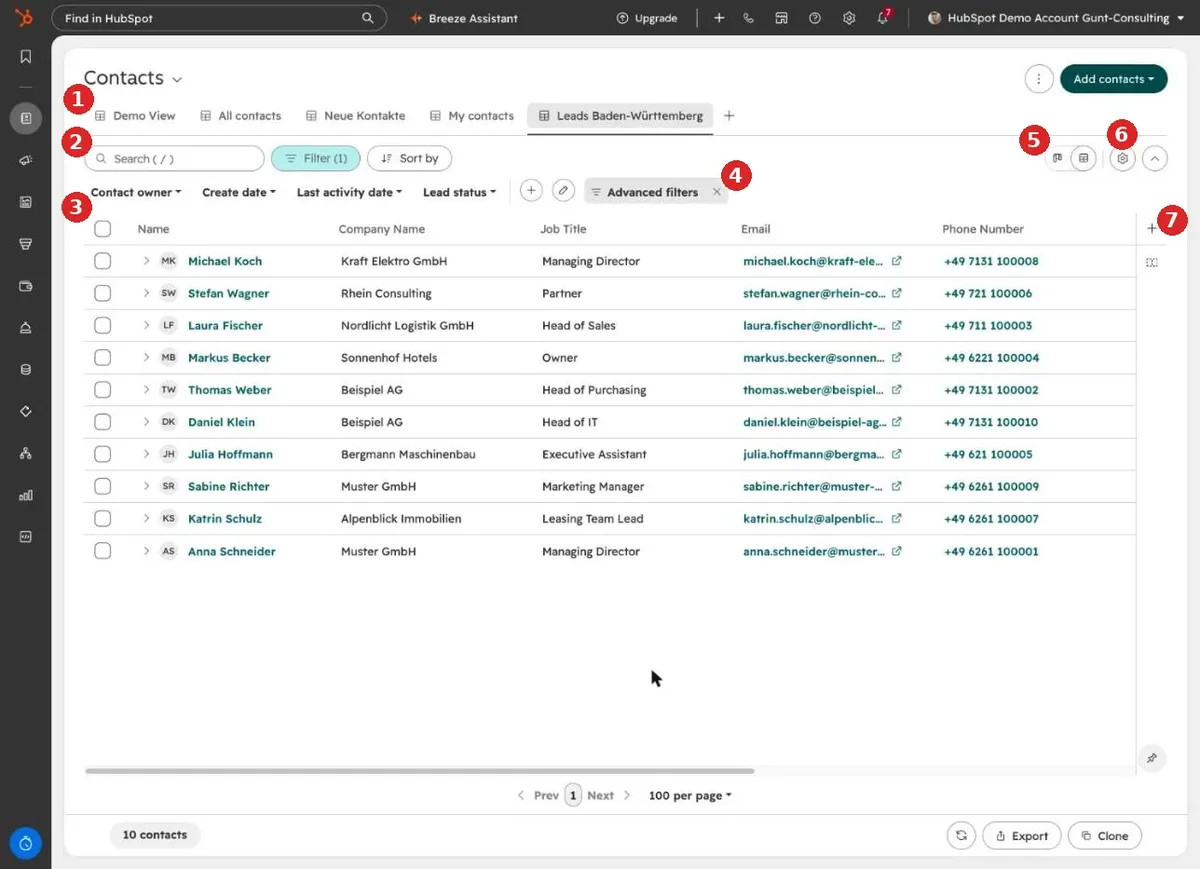
This is how you build your first view:
- Open a list, for example Contacts.
- Click “Advanced filters” and add conditions. All conditions within a group must apply, and separate groups are combined with “or”.
- Use the column icon on the right to pick the columns you need for your decision, and put them in a useful order.
- Click “Clone” at the bottom right and give the new view a name.
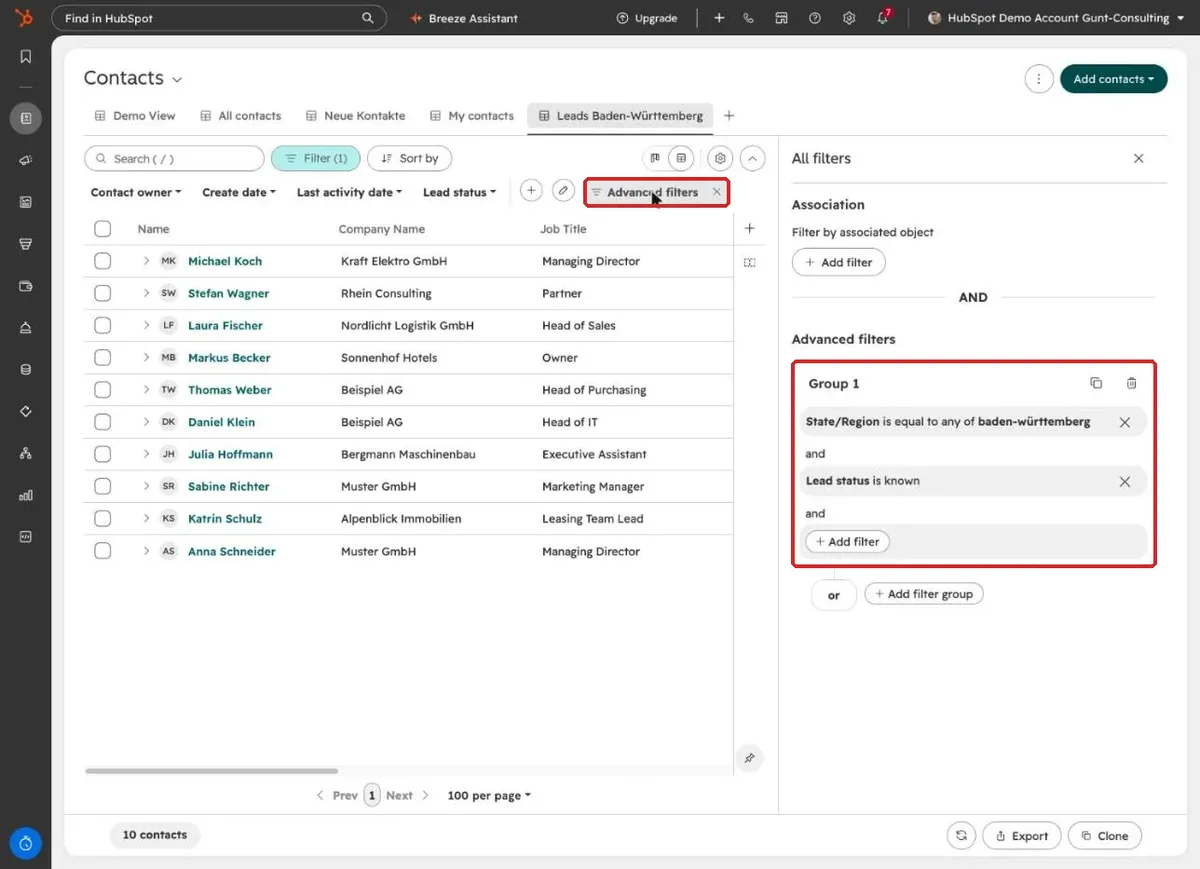
In practice, the same points cause confusion again and again:
- New views are private at first. Through the gear icon and “Manage sharing” you share them with colleagues.
- For deals, a view always shows the pipeline selected at the top right. HubSpot saves that choice per person. If a view shows you fewer deals than a colleague, check the pipeline first.
- Don’t overwrite team views. Clone the view and adjust your copy.
On the board, deals appear as cards in columns per stage. Which properties a card shows can be set for yourself, without changing the view for your colleagues: gear icon, board settings, card setup, edit, “For myself”.
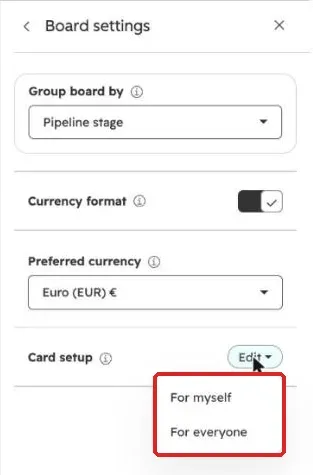
When do I use a task and when a view?
Tasks are for commitments with a fixed date, views are for states. If a customer says “call me on Monday at 3 PM”, that is a task. Anything that affects many records and stays relevant until it is resolved belongs in a view.
Many teams create a task for everything: associate the contact, check the close date, follow up on the lead. After a few weeks there are a hundred tasks in the list and nobody looks at it anymore. A view describes the state “something needs doing here” instead. Each record drops out as soon as it is done, and new cases show up without anyone adding them. When the view is empty, everything is done.
| Question | Task | View |
|---|---|---|
| Is there a fixed date? | yes, “call Monday at 3 PM” | no, holds until resolved |
| How many records? | one | many, often dozens |
| Who creates it? | you, after a conversation | nobody, the filter finds the cases |
| How do you know it is done? | you tick it off | the record drops out of the list |
| Example | send the quote by Friday | deals without a scheduled next step |
Which views have proven themselves?
Four kinds: daily lists, follow-ups, cleanup lists and handovers. Each answers one question and is empty when there is nothing to do.
Three examples from our projects:
- A software company on HubSpot Starter had no required fields per deal stage, because the license doesn’t offer them. Instead, a view called “incomplete deals” shows every deal that is missing an important value. Their daily call list runs as a board: cards move from “New” through the call attempts to “Reached” without a single task.
- A sales team with setters and closers starts every morning with two tabs: the setters’ call list and a list of new contacts that are not yet associated with a company.
- At a client with an ERP integration, one view shows all newly won customers that don’t have an ERP customer number yet. Accounting works through it instead of waiting for an email from sales.
A view that is empty most of the time is not a mistake. It is a safety net: when something appears there, a case slipped through.
How do I teach this to my team?
By having everyone build their own views once. People who only watched someone else set a filter don’t understand the system, and then HubSpot stays a list you search through.
In our trainings we click through a process once, then every participant builds their own work list: set filters, pick columns, save. That is the moment the system clicks. We also prefer short trainings per process, right after it is built, over one long session at the end where half of it is forgotten again.
A fixed rhythm helps the views get used: a quick look at due tasks and your own work list every morning, and emptying the cleanup lists once a week. How a rollout works as a whole is covered in our article on HubSpot implementation. The most common stumbling blocks at the start are in 10 mistakes HubSpot beginners make.
Each step in detail
- HubSpot Outlook integration
- HubSpot Gmail integration
- HubSpot email signature
- HubSpot meeting scheduler
- HubSpot tasks
- How to save a view in HubSpot
- HubSpot mobile app
- How to add users in HubSpot
Frequently asked questions
Can I connect our shared inbox (info@, sales@)? Not in your personal settings. There you only connect your own address. Your admin sets up shared inboxes as a team inbox. Sequences only run through a personal inbox anyway.
When connecting, I see “Admin approval required”. What now? Your IT has set Microsoft 365 so that external apps need approval. They approve HubSpot once for everyone, then it works. IT can also deploy the add-in centrally to all users.
Why does my view show fewer deals than my colleague’s? Almost always because of the pipeline selector at the top right. HubSpot remembers that choice per person. Select “All pipelines” and save the view.
Do I need a paid license for all of this? Inbox, calendar, add-in, views and filters are all available in the free CRM. Some features, such as sequences and round robin meetings, require a paid license.
Get the full guide as a PDF
All steps with 30 screenshots on 30 pages: account setup, basics, views and filters, views that work. To pass on to your team. Enter your name and email address and the guide opens right away.
How we work
We build HubSpot around your processes and introduce your team one process at a time, right after each one is in place. Every user gets a written guide and builds their own work lists during training. If your team bought HubSpot but still works in Excel, book a call with us and we’ll look at where it gets stuck.