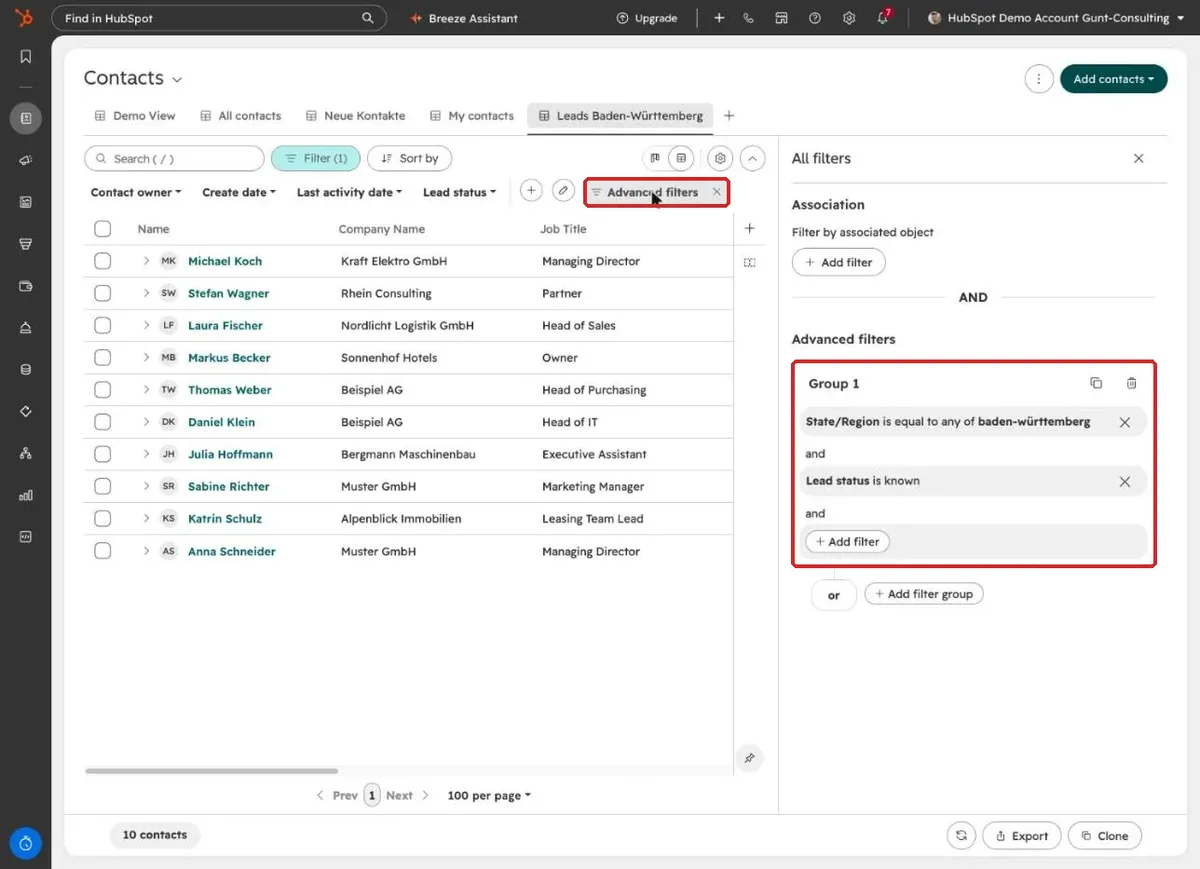
A view is a saved filter with its own columns that sits as a tab above the list. Default views like “All contacts” can’t be overwritten. To keep your filters, you turn them into a new view.
How do I save a view in HubSpot?
- Open a list, for example Contacts or Deals.
- Set your filters and pick your columns.
- Click “Clone” at the bottom right.
- Name the view and press Enter.
The new view now sits as its own tab above the list.
How do I save changes to an existing view?
Through the gear icon above the table and “Save changes”, or with Ctrl+S (Mac: Cmd+S). “Reset to last save” discards unsaved changes.
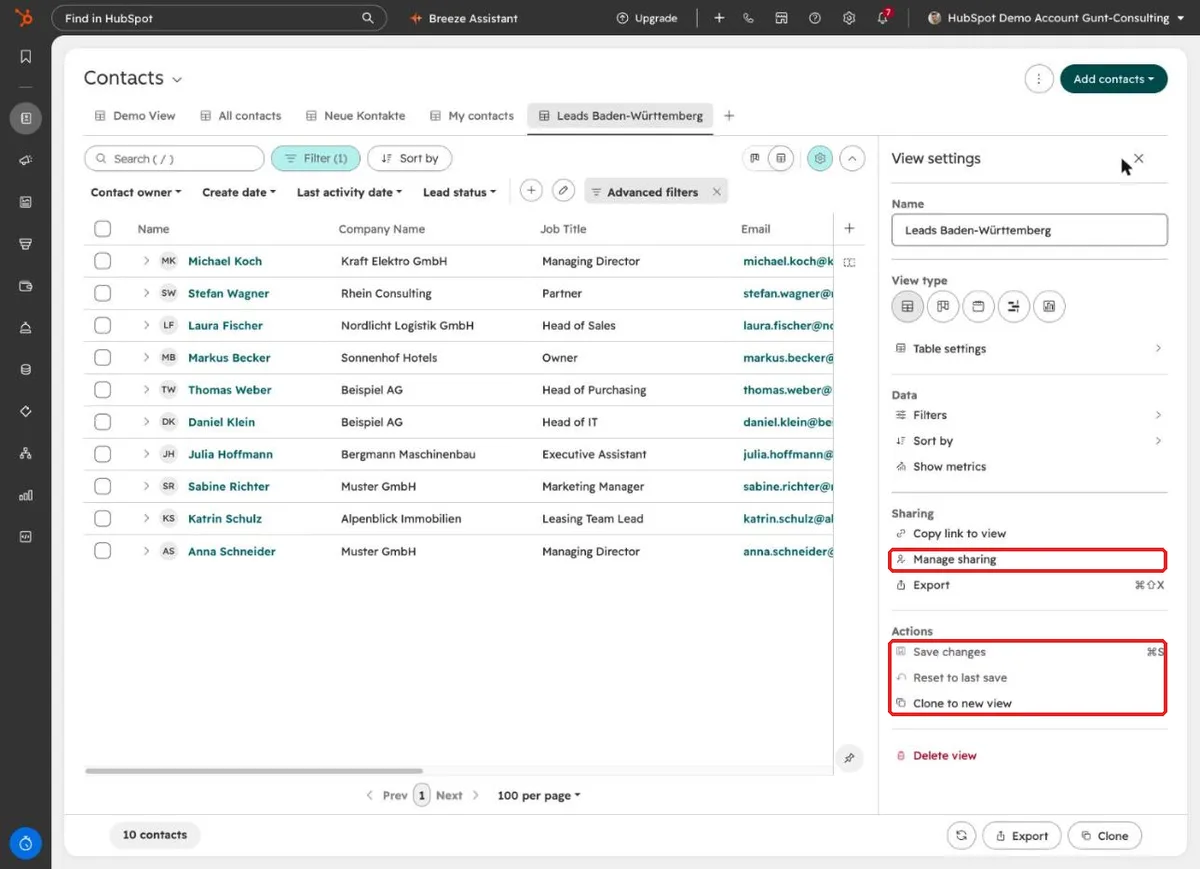
Don’t change views that were built for the whole team. Clone the view and adjust your copy.
How do I share a view with colleagues?
New views are private at first. Through the gear icon and “Manage sharing” you share them with individual colleagues, teams or everyone.
Why does my deal view show fewer deals than my colleague’s?
Because of the pipeline selector at the top right. A deal view always shows the selected pipeline, and HubSpot saves that choice per person. If a view should show every deal, select “All pipelines” and save the view.
Which views are worth building?
Views that answer one question and are empty when there is nothing to do. For example “Who do I call today?” or “Which open deals have no next step?”. Name the view after that question, so everyone knows what it is for. More on this, with examples from our projects, is in our guide on how to use HubSpot.
Frequently asked questions
What is the difference between a view and a segment? You work with a view, for example when making calls. You use a segment for email sends, workflows or reports.
Can I change the board cards just for me? Yes. Gear icon, board settings, card setup, edit, “For myself”. Nothing changes for your colleagues.
Rolling HubSpot out to your team and want people to actually use it? Book a call with us.