Tasks in HubSpot are for commitments with a fixed date. If a customer says “call me on Monday at 3 PM”, that is a task. For anything that affects many records and stays relevant until it is resolved, a view is the better tool.
How do I create a task?
The easiest way is right on the record, after the conversation. Open the contact or deal, click “Task”, and enter a title, the type (call, email, to-do) and the due date. When you save a note, you can also set a follow-up task in the same step.
How do I work through my tasks?
In the CRM menu under Tasks. The tabs “Due today”, “Overdue” and “Upcoming” are your plan for the day. “Start tasks” opens the first task together with its record and jumps to the next one once you’re done. That way you work through a call list in one go.
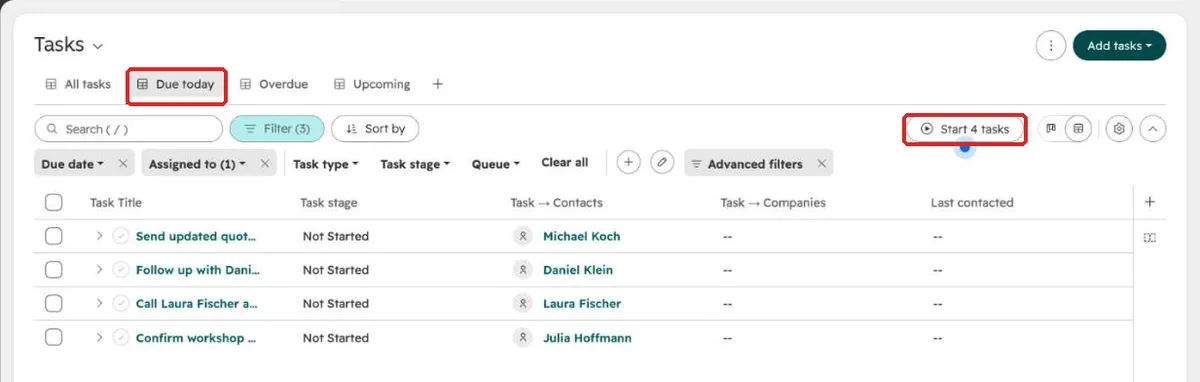
Queues let you group tasks into batches, for example “Monday calls”.
Which defaults should I set?
Under gear icon, Your Preferences, General, the Tasks tab, you decide what is preselected for every new task.
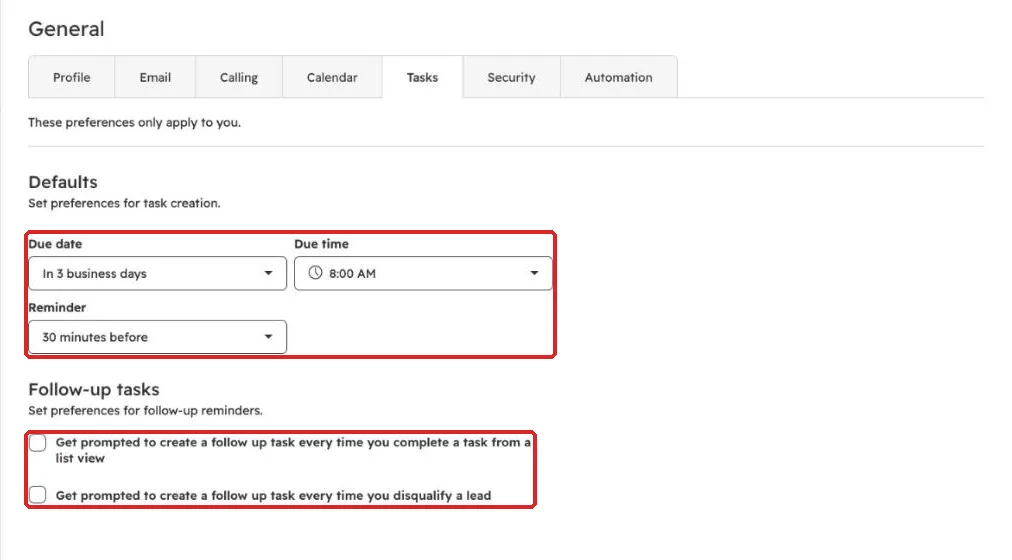
- Due date: “In 3 business days” fits most follow-ups.
- Due time: for example 8:00 AM, so the task is in your list in the morning.
- Follow-up tasks: with the first checkbox, HubSpot asks after every completed task whether you want to create the next one. That way no customer is left without a next step.
Why do so many teams have too many tasks?
Because they create one for everything: associate the contact, check the close date, follow up on the lead. After a few weeks there are a hundred tasks in the list and nobody looks at it anymore.
In our projects we use a view for these cases, with a filter that describes the state, for example “open deals without a scheduled next step”. Each deal drops out as soon as the next step is scheduled, and new cases show up without anyone adding them. How to build one is in how to save a view in HubSpot.
Frequently asked questions
Can I see tasks in my calendar? Yes, if you turn on task syncing in the Calendar tab. They then appear in a separate calendar.
Can tasks be created automatically? With workflows, depending on your plan. Check first whether a view would do the job.
Every step for your first week in HubSpot is in our guide on how to use HubSpot. Rolling HubSpot out to your team and want people to actually use it? Book a call with us.