Connecting Gmail takes two steps. You connect your inbox in HubSpot’s settings, so replies land in the CRM automatically. And you install the Chrome extension, so you can log and track emails right from Gmail.
How do I connect my Gmail inbox to HubSpot?
Gear icon at the top right, Your Preferences, General, the Email tab, then “Connect email account”. Choose Google, sign in and confirm the permissions. Your inbox then shows up in the list with the status “Enabled”.
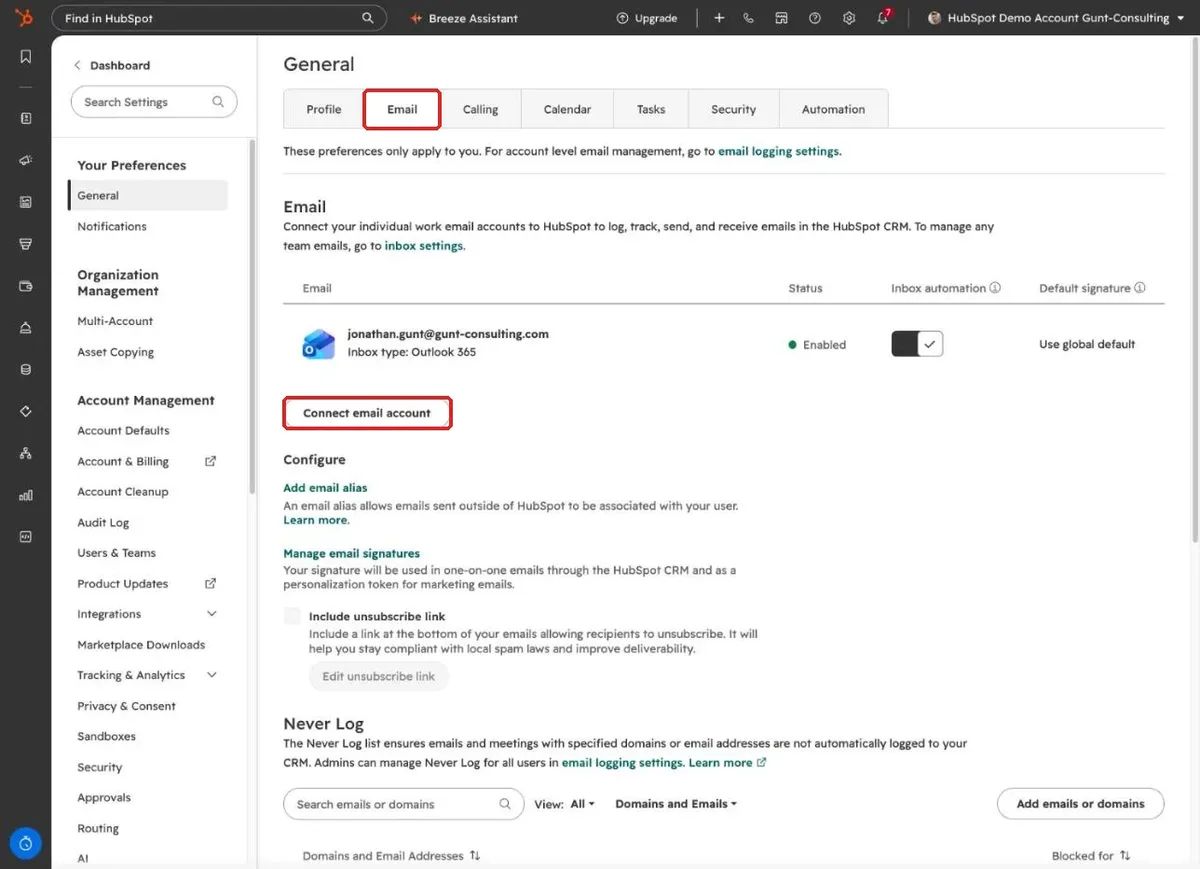
Your Google Calendar is usually connected in the same step. Check the Calendar tab. If your account is listed as connected, meetings with customers are logged automatically.
Why do I also need the Chrome extension?
So HubSpot shows up inside Gmail itself. The HubSpot Sales extension for Chrome logs and tracks emails you write in Gmail, shows contact details next to the email and helps you insert templates and your meeting link. It works with every HubSpot plan, including the free CRM.
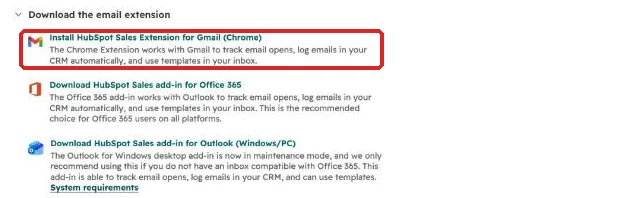
- In the Email tab, click the link to install the HubSpot browser extension for Gmail (Chrome).
- Choose “Add to Chrome”.
- Sign in with your HubSpot account and reload Gmail.
When you write an email you’ll see two checkboxes: Log and Track. Log saves the email on the contact, company and deal, where your colleagues can see it. Track only shows you whether and when the email was opened.
Frequently asked questions
Does it work in Safari or Firefox? The extension is Chrome only. You can still connect your inbox from any browser.
Will all my emails end up in the CRM now? That depends on the logging rule your admin has set for the account. With “Log all emails from known contacts”, every email with existing contacts is logged, with “Log replies only” just replies to threads that are already logged. Emails to people who aren’t contacts in HubSpot stay out. Personal addresses stay out if you add them to the “Never Log” list in the Email tab.
Can I connect info@ or sales@? Not in your personal settings. Your admin sets up shared addresses as a team inbox.
Using Outlook instead of Gmail? Read our guide to the HubSpot Outlook integration. Every step for your first week in HubSpot is in our guide on how to use HubSpot. Rolling HubSpot out to your team and want people to actually use it? Book a call with us.