The Outlook integration has three parts: connect your inbox, connect your calendar and install the add-in. After that, emails and meetings with customers reach the CRM without anyone typing them in, and in Outlook you see who the contact is and what was discussed last.
How do I connect my Outlook inbox to HubSpot?
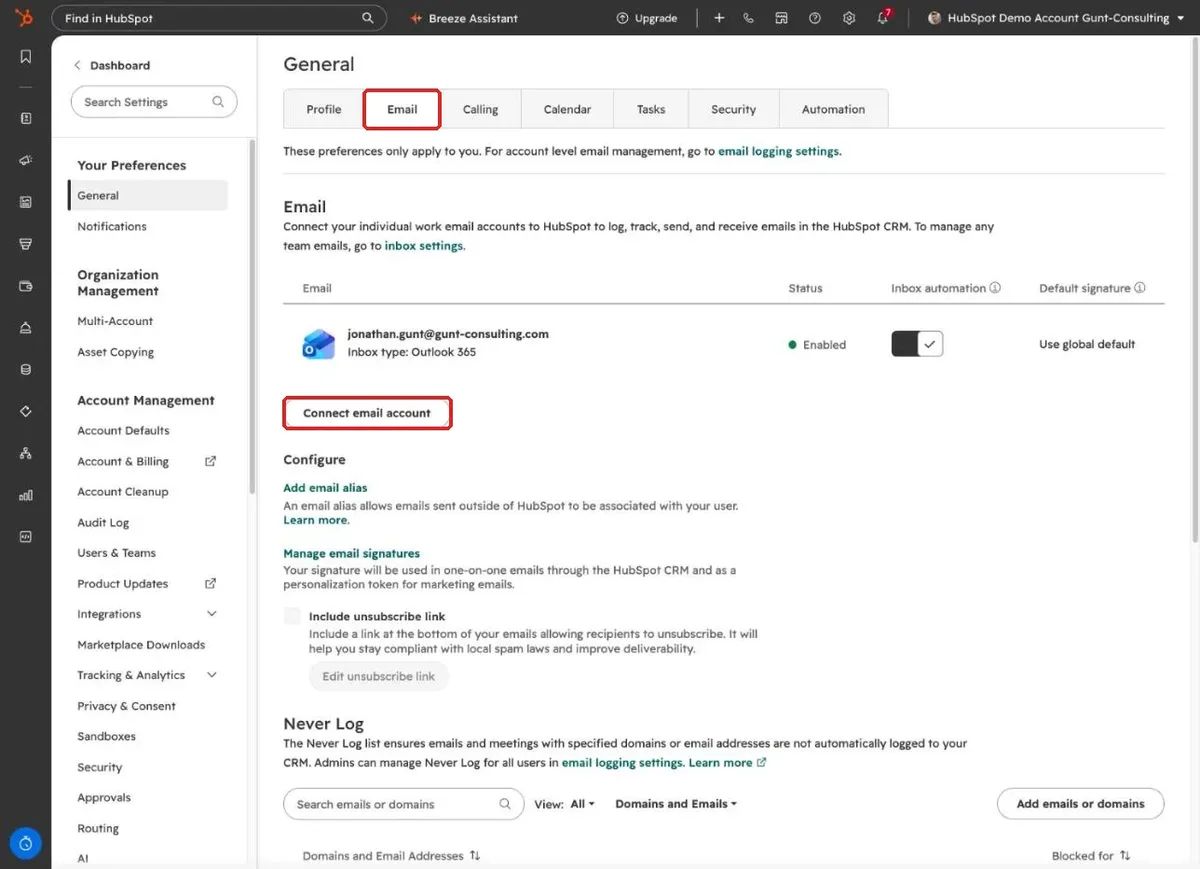
Gear icon at the top right, Your Preferences, General, the Email tab, then “Connect email account”. Choose Microsoft, sign in and confirm the permissions. Your calendar is usually connected in the same step, check the Calendar tab.
If you see “Admin approval required”, your IT has set Microsoft 365 so that external apps need approval. They approve HubSpot once for everyone, then it works.
Which Outlook add-in is the right one?
The Office 365 add-in, listed as HubSpot Sales in Microsoft’s store. It works in new and classic Outlook, on Windows, Mac and in the browser. According to HubSpot, the Windows desktop add-in is in maintenance mode and only meant for inboxes without Microsoft 365.
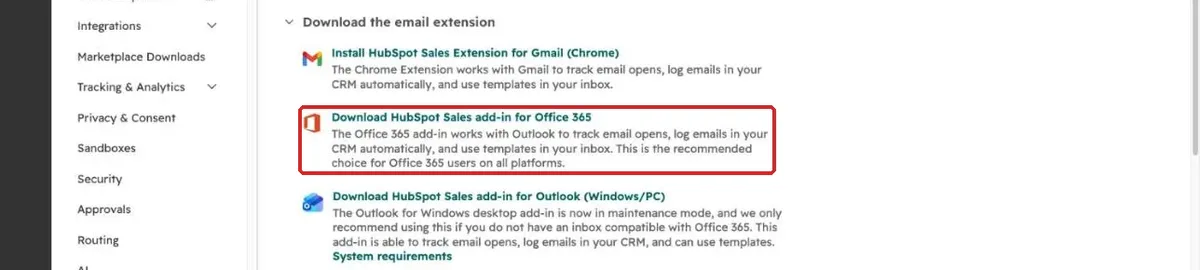
- Click the download link for the Office 365 add-in. You land on Microsoft’s listing for HubSpot Sales.
- Click “Get it now”, sign in with your Microsoft account and confirm with “Add”.
- Restart Outlook.
In classic Outlook you’ll find HubSpot in the ribbon under “Sales Tools”. In new Outlook and in the browser, open “Apps” and then HubSpot Sales.
Why aren’t my emails being logged?
Three things decide whether an email lands in the CRM: your inbox is connected, the contact already exists in HubSpot, and the logging rule your admin has set for the whole account.
You’ll find that rule under the gear icon, Data Management, Objects, Activities, in the Email Log & Track tab, section “Contact email logging rules”:
- Log replies only: only replies to a thread that is already logged. An email you send from Outlook without logging it stays out, and so do the replies to it.
- Log all emails (from known contacts): every email to and from existing contacts is logged, including emails from Outlook on your phone. HubSpot calls this the default.
- Create new contacts from logged emails: like the rule above, and HubSpot also creates a contact for unknown senders. Currently a beta.
Emails to people who aren’t contacts in HubSpot are not logged under the first two rules. Create the contact first, or log the email by hand in the add-in sidebar. You also need the open sidebar to track opens and clicks. Pin it with the pin icon, then it stays open for every new email.
Also maintain the “Never Log” list in the Email tab. Personal addresses, your tax advisor or suppliers without a customer relationship then stay out of the CRM.
Frequently asked questions
Can IT install the add-in for everyone? Yes, in the Microsoft 365 admin center under integrated apps, listed as HubSpot Sales. It can take up to 72 hours until the icon appears for everyone.
Do I need a paid license? No. Inbox, calendar and add-in all work in the free CRM.
What about my signature? HubSpot doesn’t take it from Outlook. How to set it up is in our article on the HubSpot email signature.
Every step for your first week in HubSpot is in our guide on how to use HubSpot. Rolling HubSpot out to your team and want people to actually use it? Book a call with us.